

Forward an email receipt. It shows up itemized.
Software renewals, hotel folios and online orders arrive by email. Forward one to your Receipt Rabbit address and it lands in the app next to your paper receipts, with every line categorized.

Two addresses, both in Settings
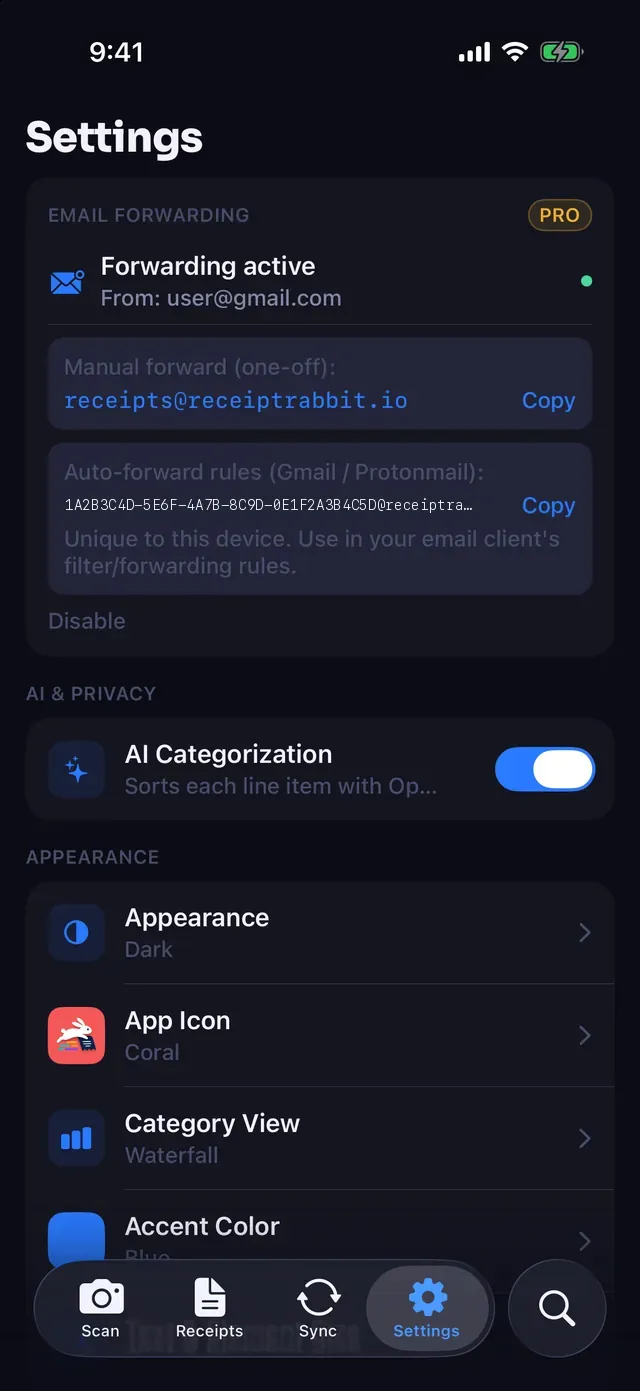
The Email forwarding card in Settings gives you two addresses.
For a one-off, forward the receipt to [email protected] from the email address you registered in the card. That is the whole step.
For receipts you always want, set up an automatic forwarding rule in Gmail or Proton Mail. Point it at the private address shown in the card, which belongs to you alone.
Email forwarding is part of Pro. On Free, the card shows a locked preview.
What happens to the email
Receipts arrive by email in a few shapes, and each one becomes a single receipt in the app.
- PDF attachment: saved as the receipt.
- Image attachment: saved as the receipt photo.
- Several attachments: combined into one PDF, in the order they were sent.
- No attachment: the receipt is written in the body of the email, so the email itself is turned into a PDF.
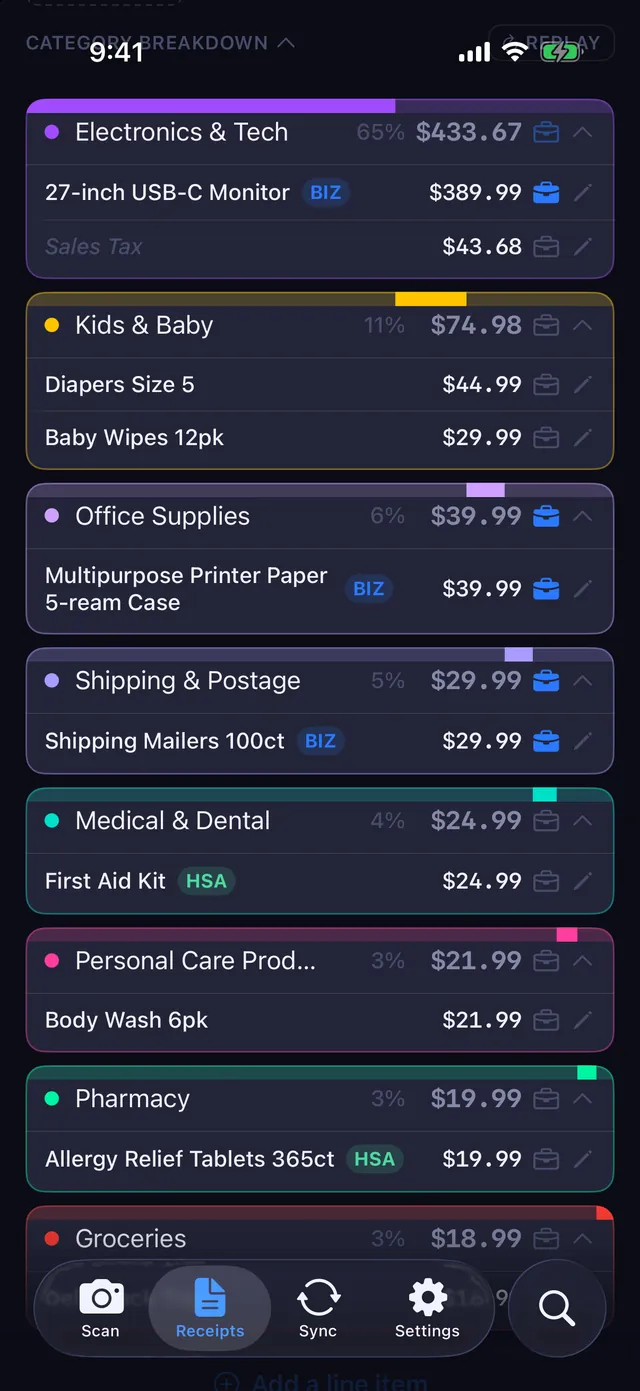
After that it is read line by line and categorized like a scanned receipt, so a hardware order with a drill and a box of printer paper can come out as two categories.
Some forwarded emails are invoices or order confirmations rather than receipts. Give those a look before you file them.
The app never connects to your mailbox. You forward, and the message comes through the Receipt Rabbit server to reach your phone.
When it arrives
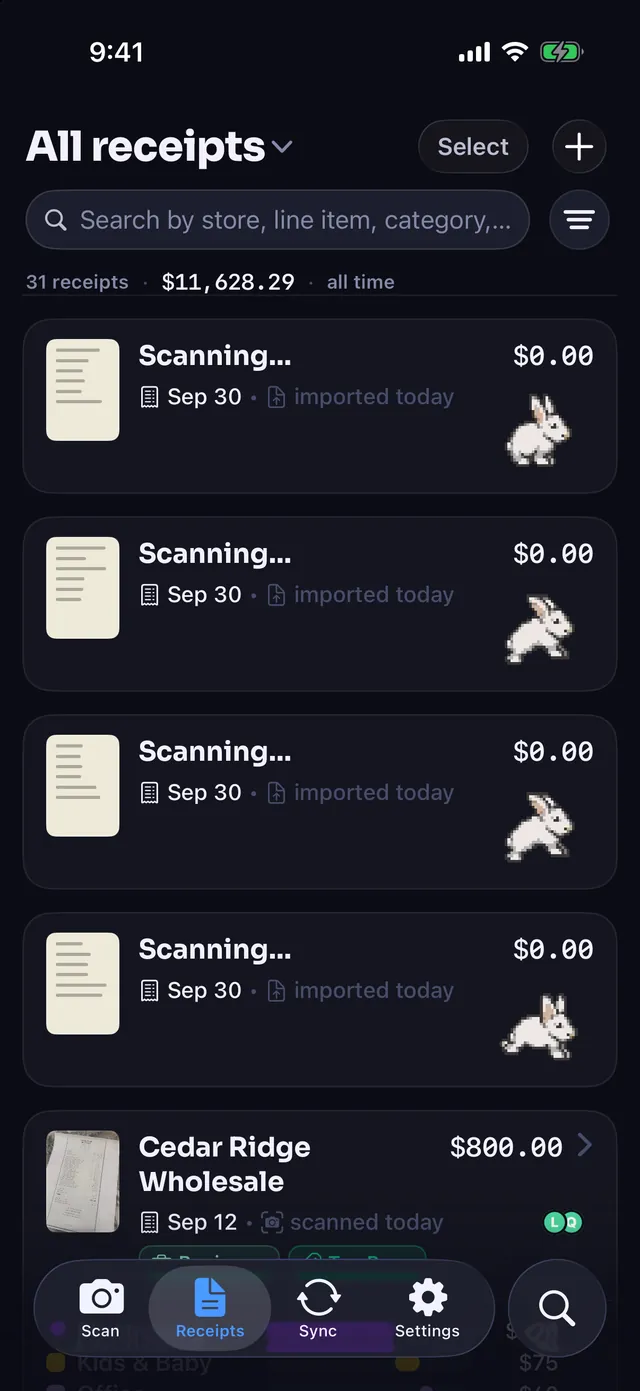
Forwarded receipts are brought in when you open the app or switch back to it, and when you pull down to refresh the list. It does not arrive the instant you tap Forward. Forward it from your laptop, and it is waiting the next time you open the app.
Where it goes next
A forwarded receipt is treated like any other. If QuickBooks Online or Lunch Money is connected, it is sent over after it arrives. It shows up in search by store, item, category and date.
Receipt Rabbit is coming soon on the App Store.