

Search your receipts by the item you bought
Receipt Rabbit keeps every receipt you add and reads every line on it. Come back in March and you search for what you bought, not where you bought it. You do not need QuickBooks or Lunch Money for any of this.
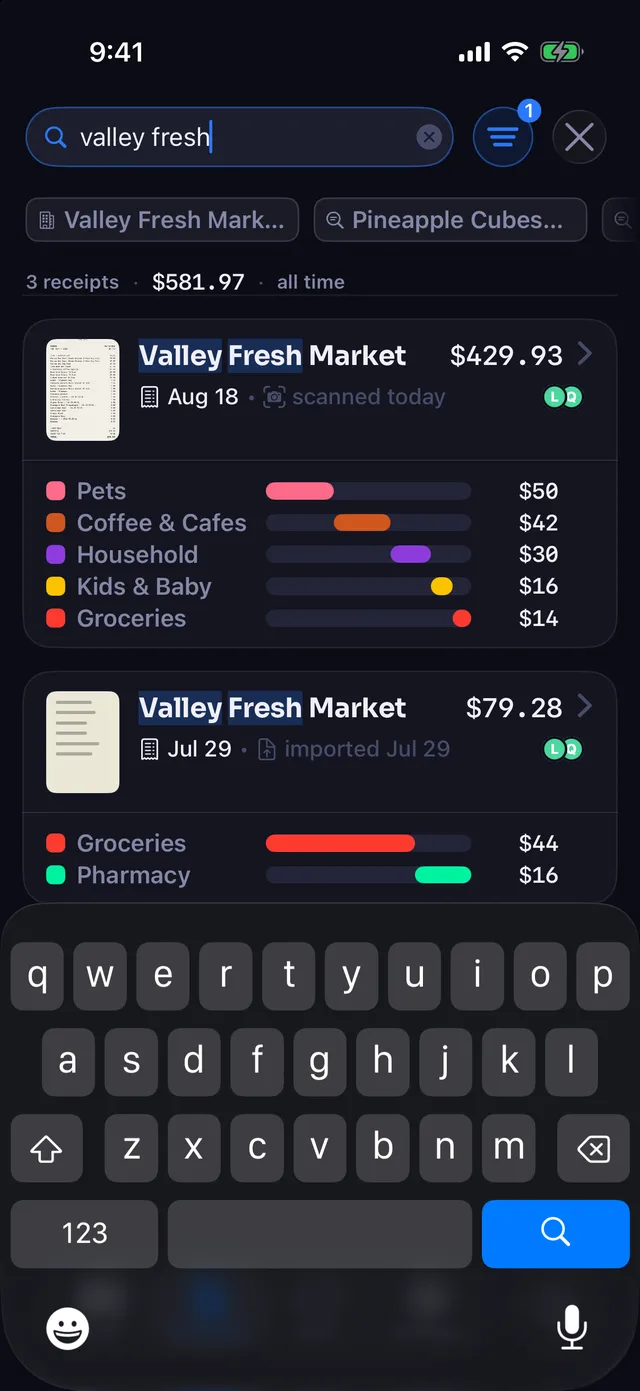
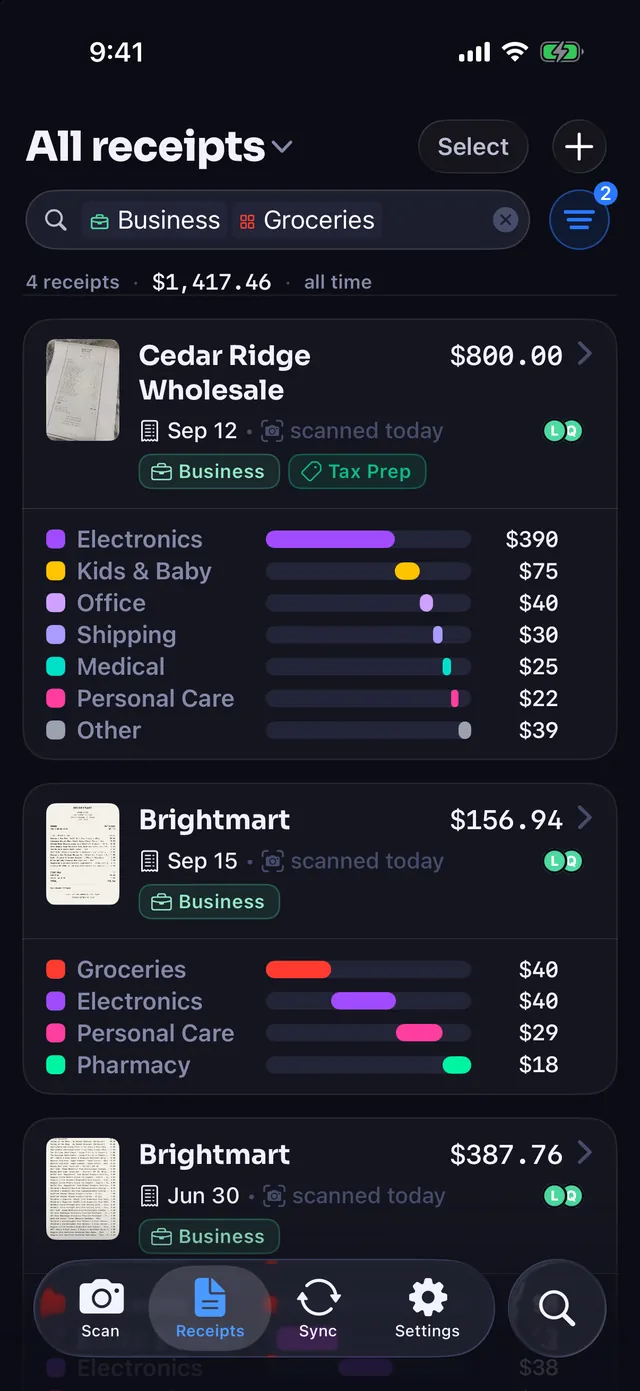
Search by item, store, note or tag
Type “toner” and you get the receipts with toner on them, whichever store sold it. Search looks at:
- the store name
- the text of every line item
- your notes and tags
- the words read off the receipt itself
Add a date phrase to narrow it down.
As you type, matching categories and stores are offered as chips. Pick Groceries and keep typing to search inside that category, or pick two stores to see both at once.
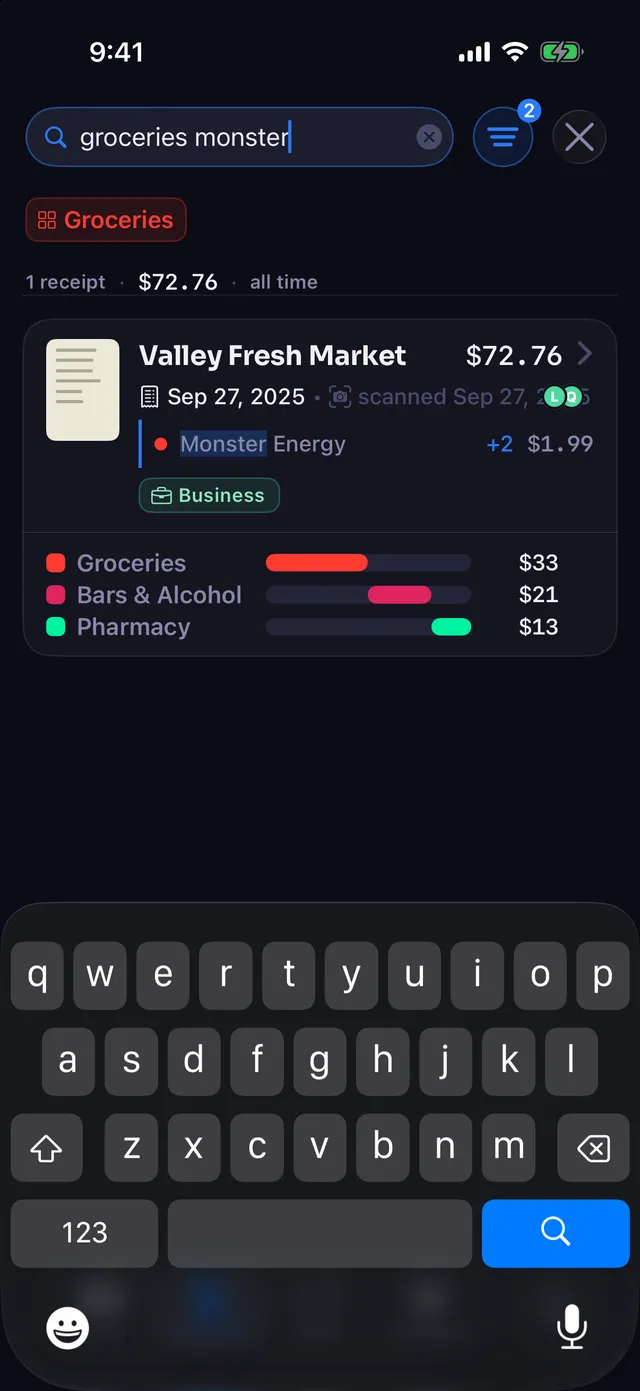
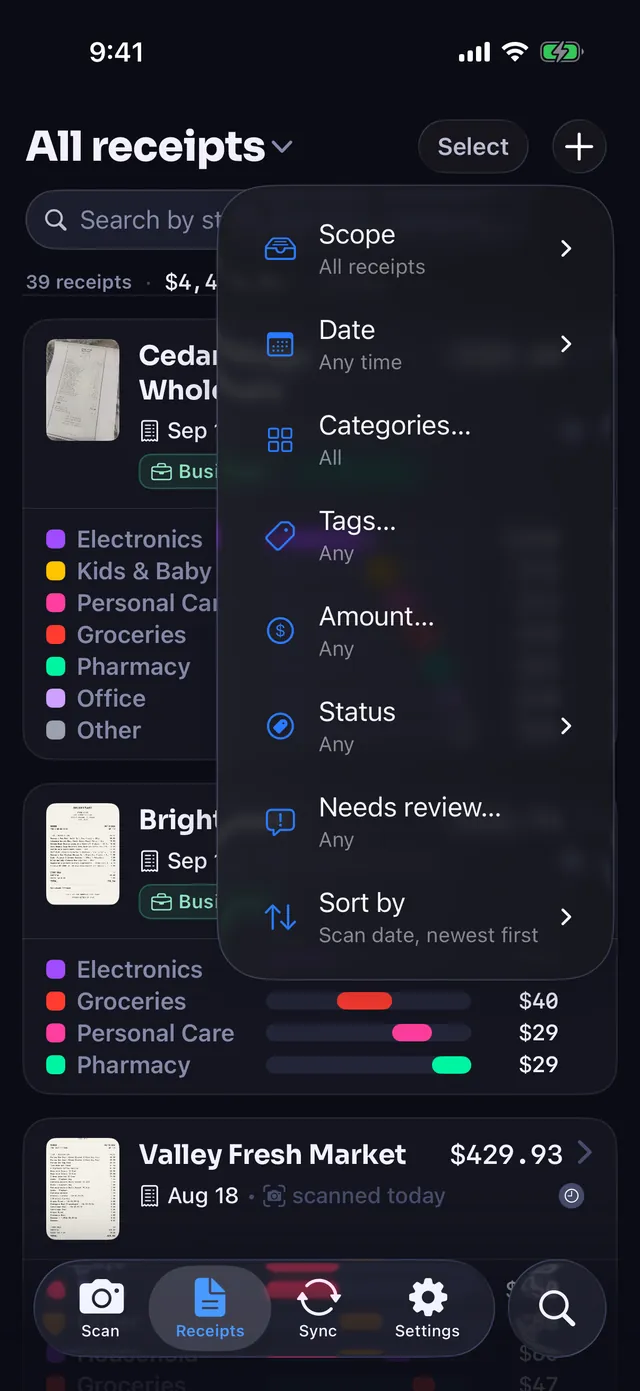
Filter by category, date, tag or amount
The filter menu narrows the list by category, date range, tag and amount, or down to receipts that still need a look. Sort by the date on the receipt to line up a month, or by amount to find the big ones.
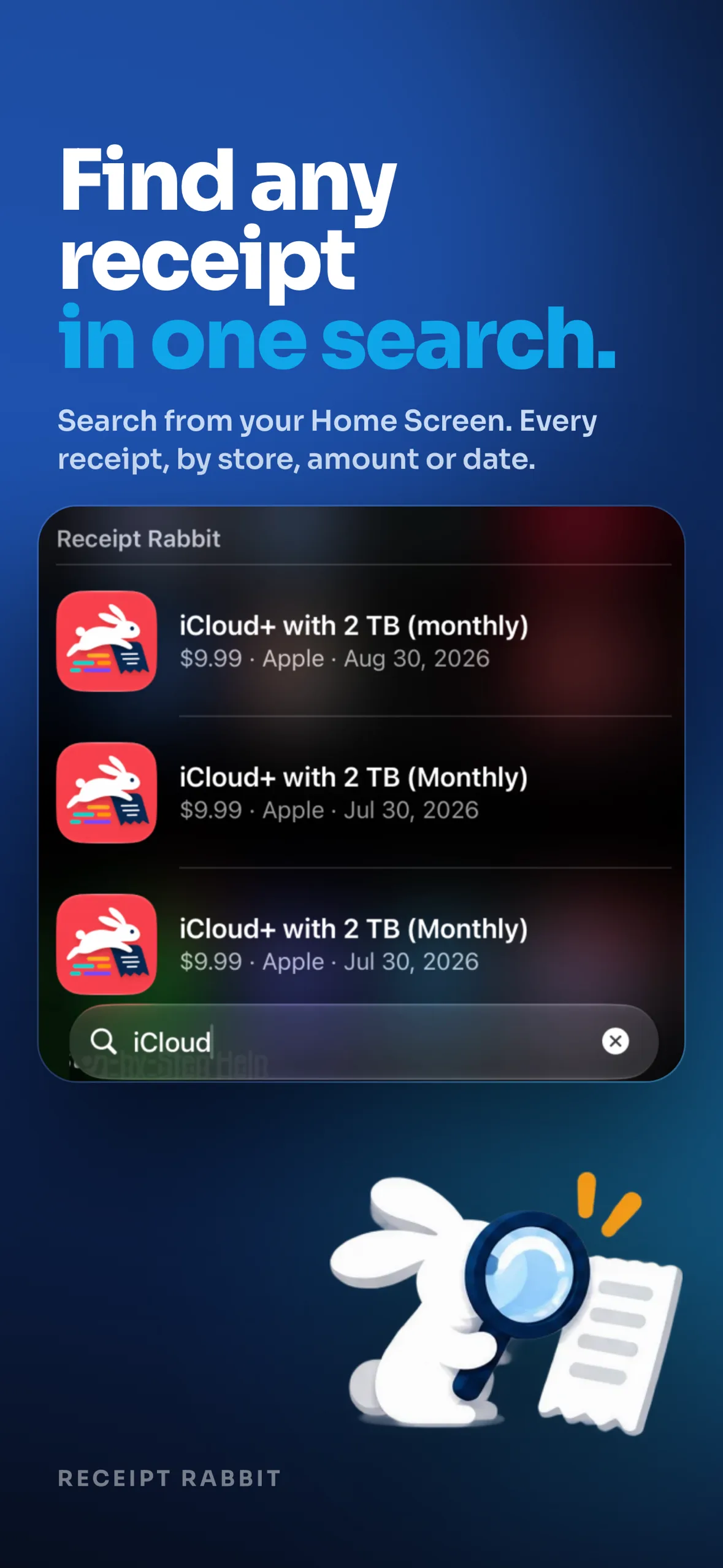
In Spotlight and Siri too
Receipts and individual line items show up in iPhone Spotlight search, so you can find last month's printer paper without opening the app.
- Siri and Shortcuts: scan a receipt, find receipts, find an item, or save a receipt.
- iOS 18 and later: a Scan Receipt control for Control Center, the Lock Screen or the Action Button.
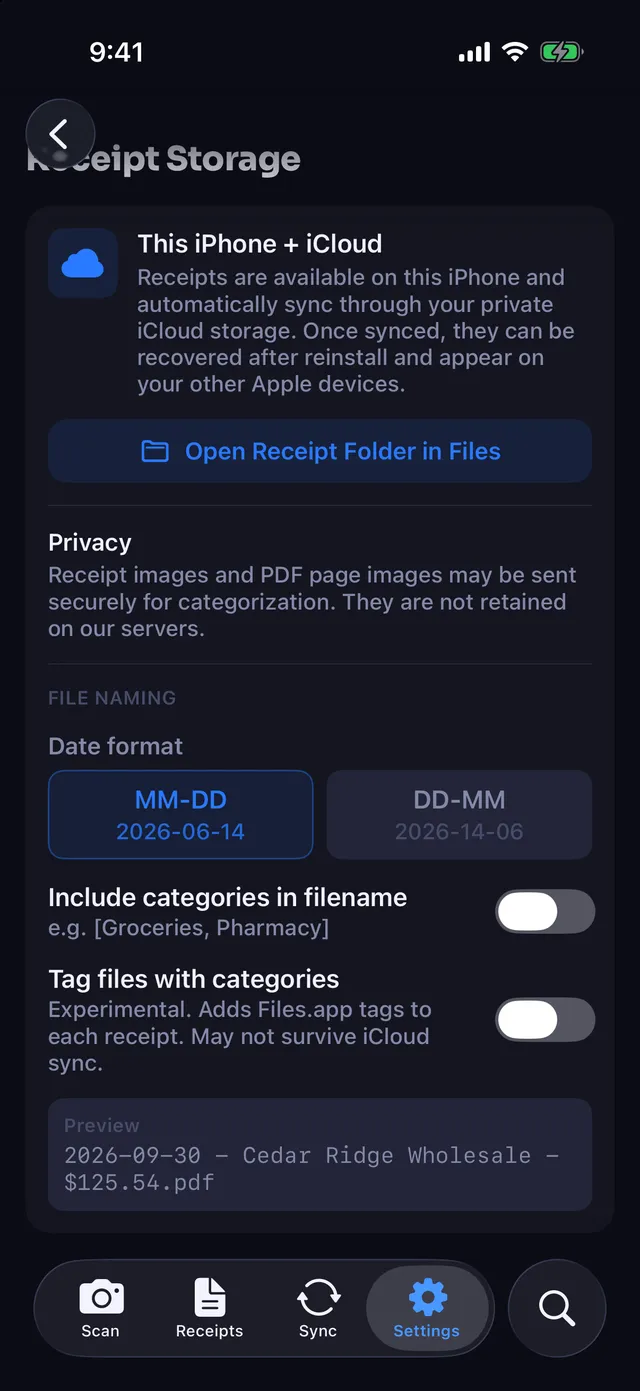
A Receipt Rabbit folder in your iCloud Drive
Each receipt is also saved as a PDF in a Receipt Rabbit folder in your iCloud Drive, named by date, store and amount:
2026-03-14 - Cedar Ridge Wholesale - $812.40.pdf
You can open that folder in the Files app without opening Receipt Rabbit. Adding the categories to the file name is optional and starts off. Receipts sync across your devices through your own iCloud, not through an account with us.

Hand your accountant one file
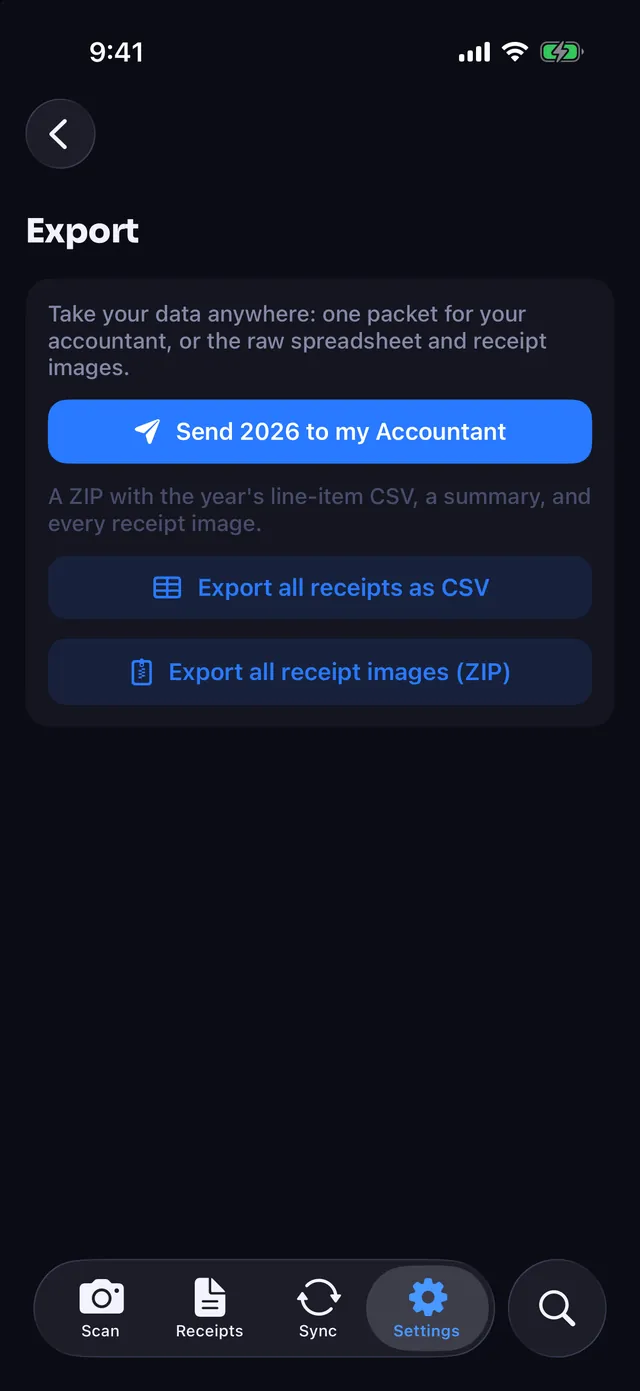
The tax-year export is one zip: a spreadsheet with a row for every line item, plus every receipt image. For a client reimbursement, an expense report covers just the receipts you select. Both are part of Pro. What your accountant does with them, and what counts as deductible, is their call.

Getting receipts in
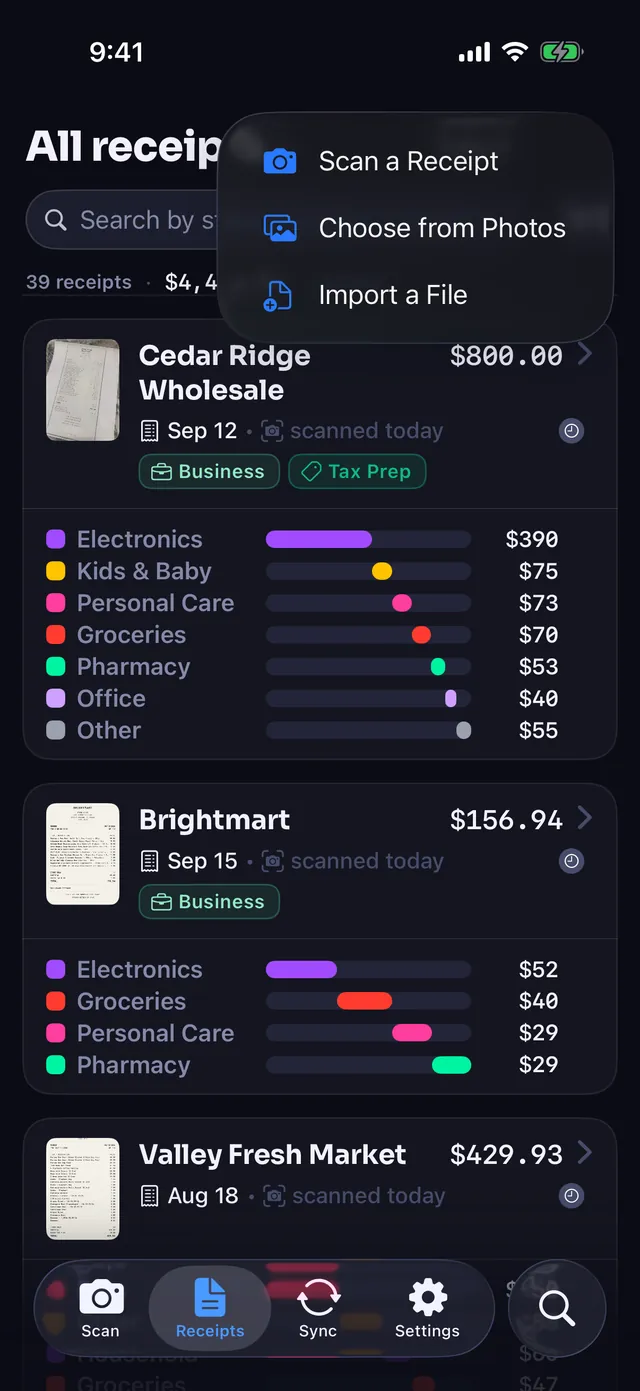
- Camera: finds the receipt in the frame, cropping and straightening it.
- Photos or Files: pick a receipt already on your phone.
- Share from another app: send a receipt in from wherever it is.
- Bulk import: a stack of receipt photos at once.
- PDFs: up to 10 pages each.
- Email forwarding: forward an emailed receipt to your own address (Pro).
Receipt Rabbit is coming soon on the App Store.